Follow the steps bellow to create a new Block.
There is also a video at the end of this article but it’s recommended to read the steps to have a better understanding, (jump to video).
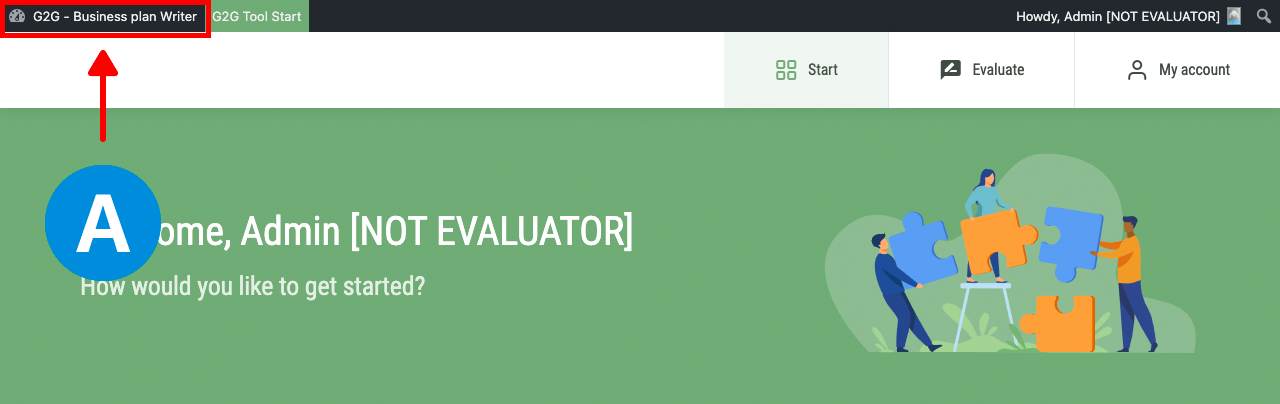
A – In case you are in the tool you will need to click on the left-top area to go in to the Dashboard.
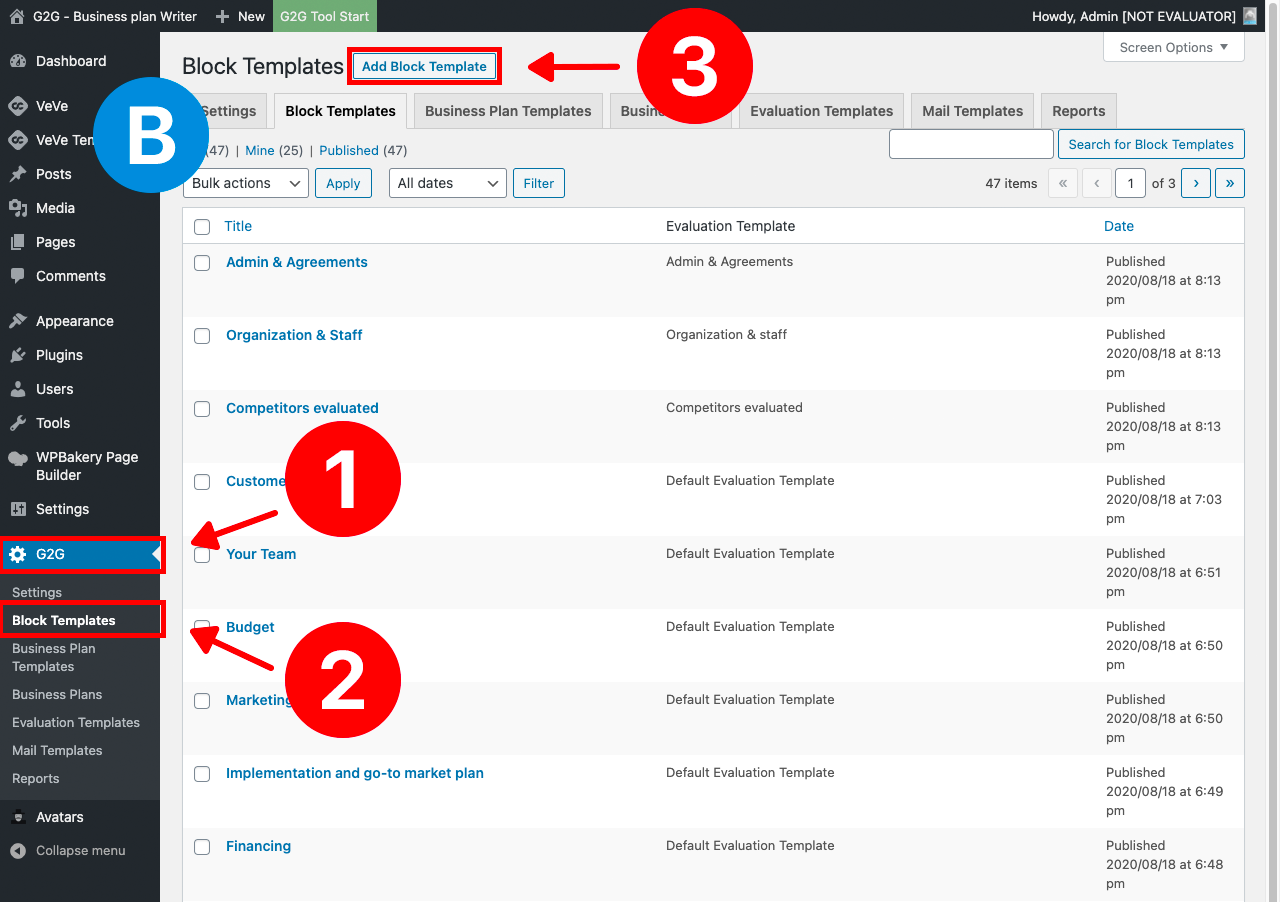
B – You are already in the Dashboard.
1 – Click on the “G2G” blue menu item.
2 – Click on Block Templates menu item.
3 – Click on the button on the top “Add Block Template”.
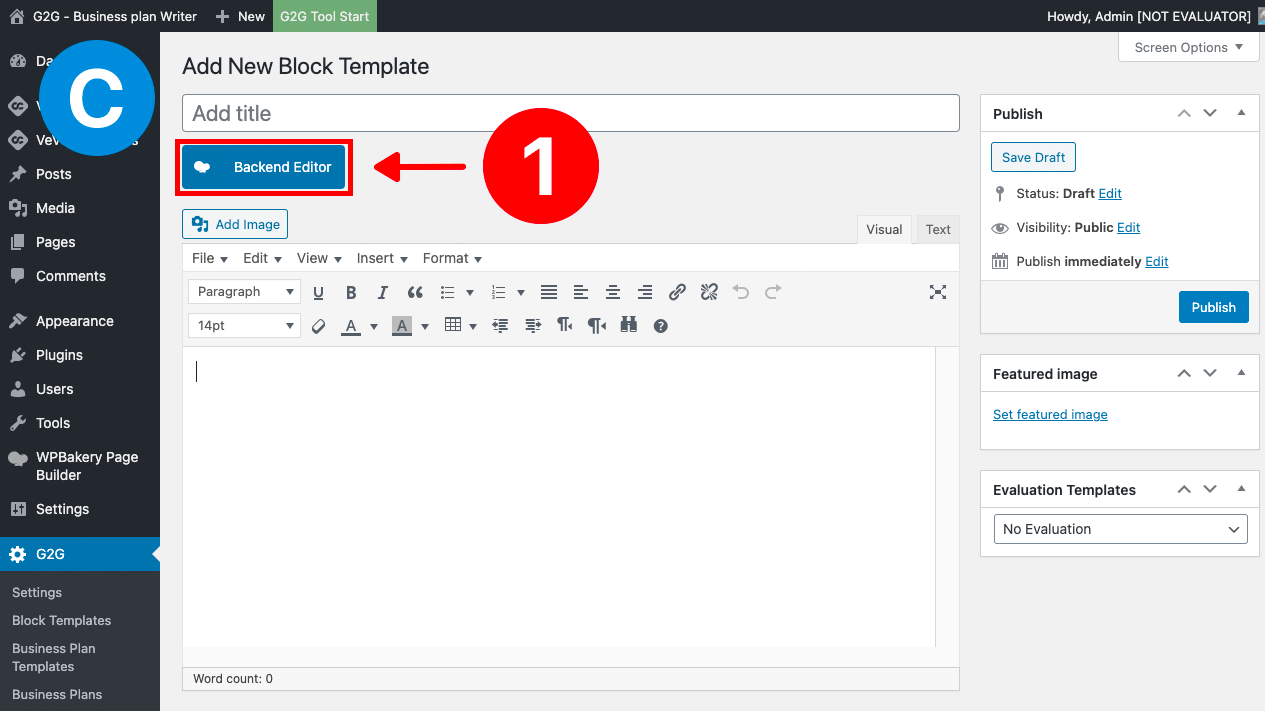
C – Now we will build the block
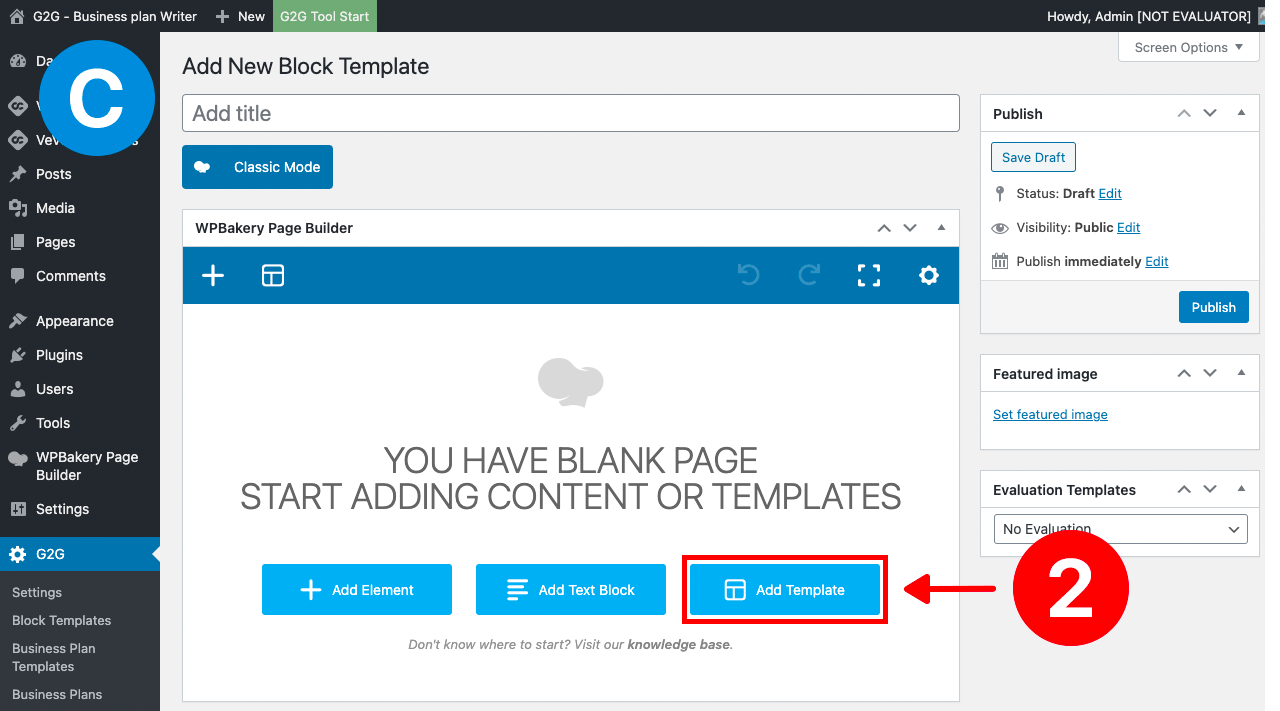
1 – Click on the blue button “Backend Editor”.
2 – Click on the blue button “Add Template”.
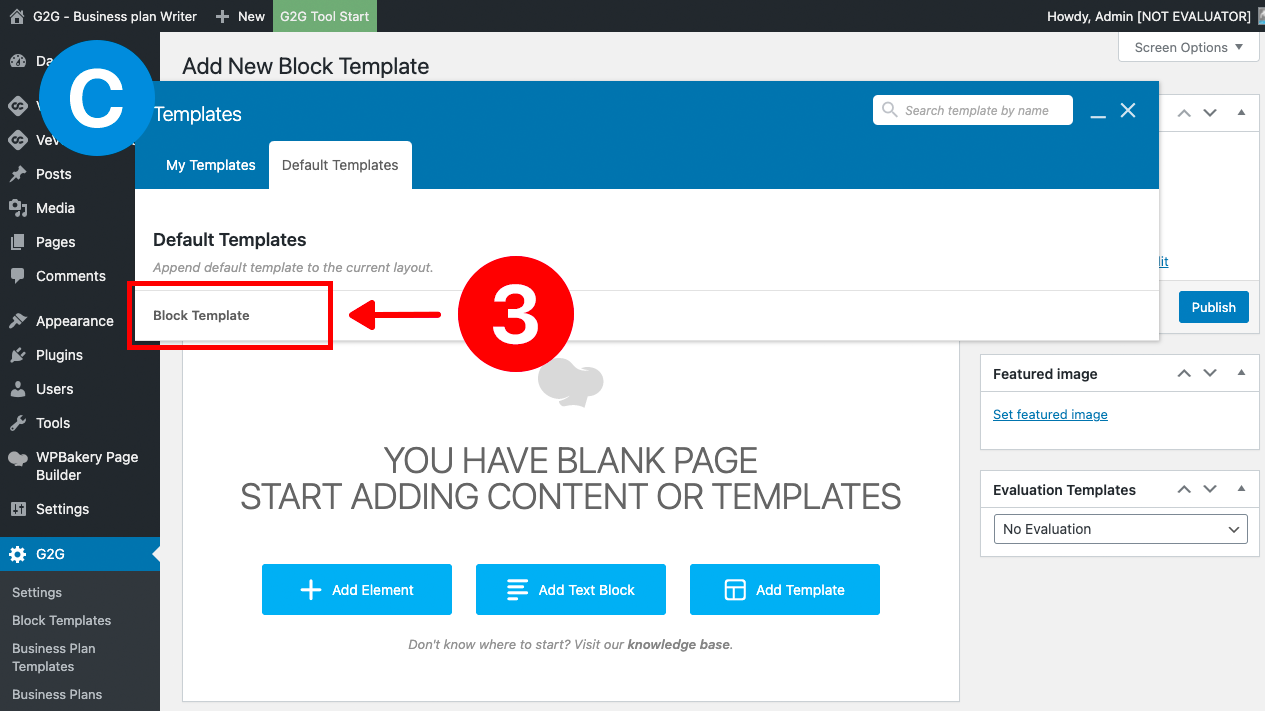
3 – Select the “Block Template” from the list.
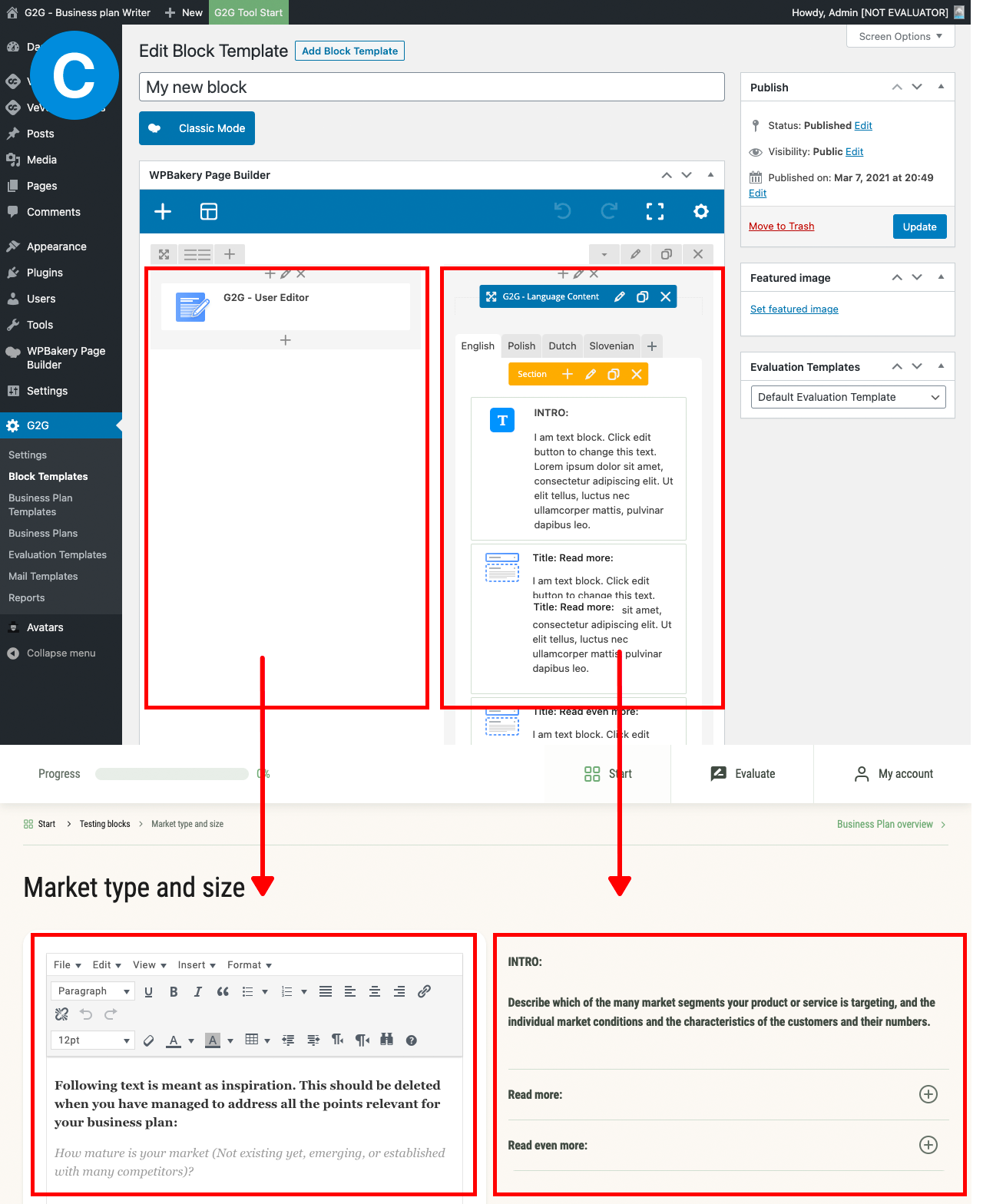
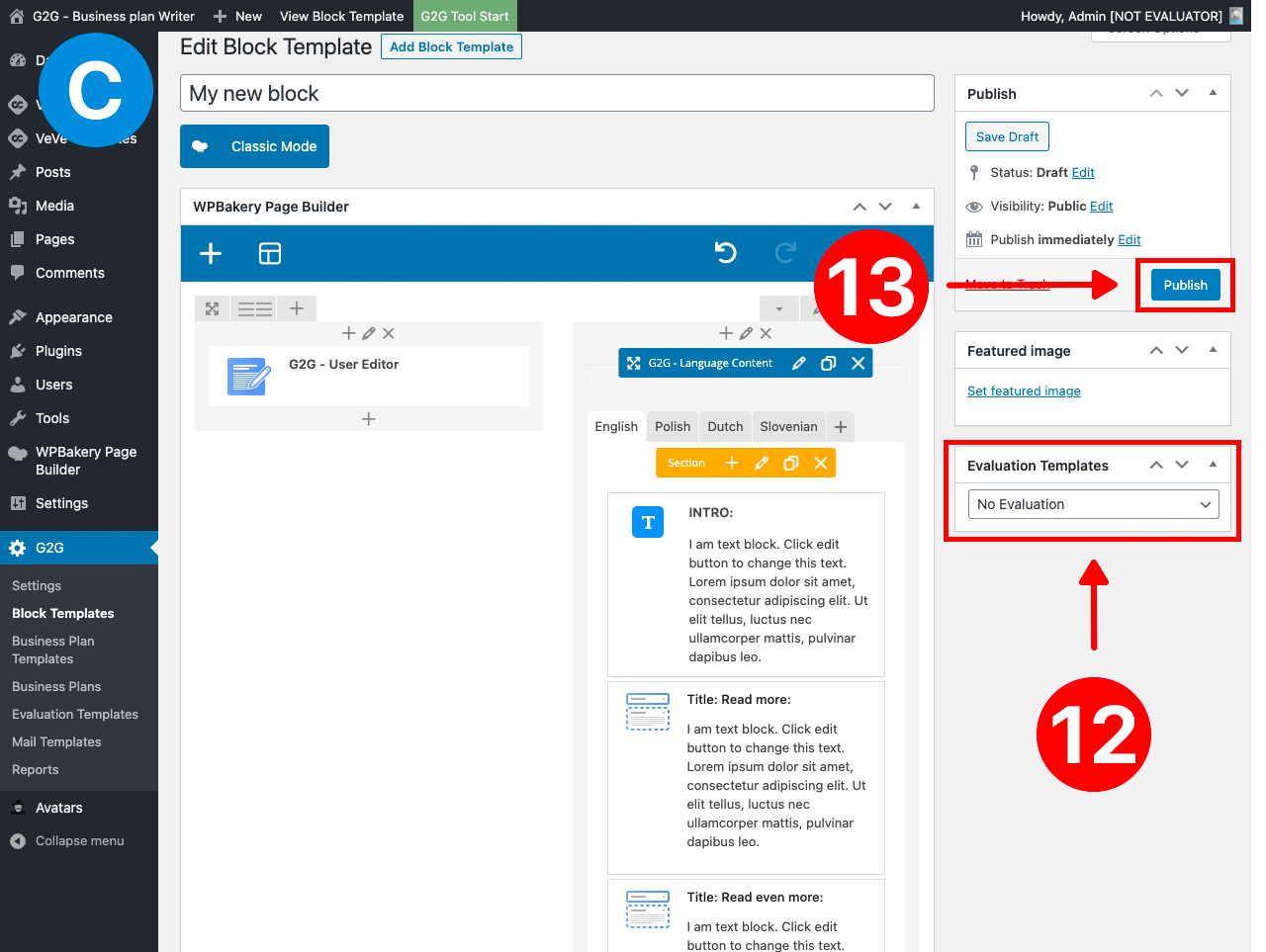
NOTE – This is how the screen will look like. The Left column is the editor where the entrepreneurs will need to write their text. And the Right column is the help text from each block.
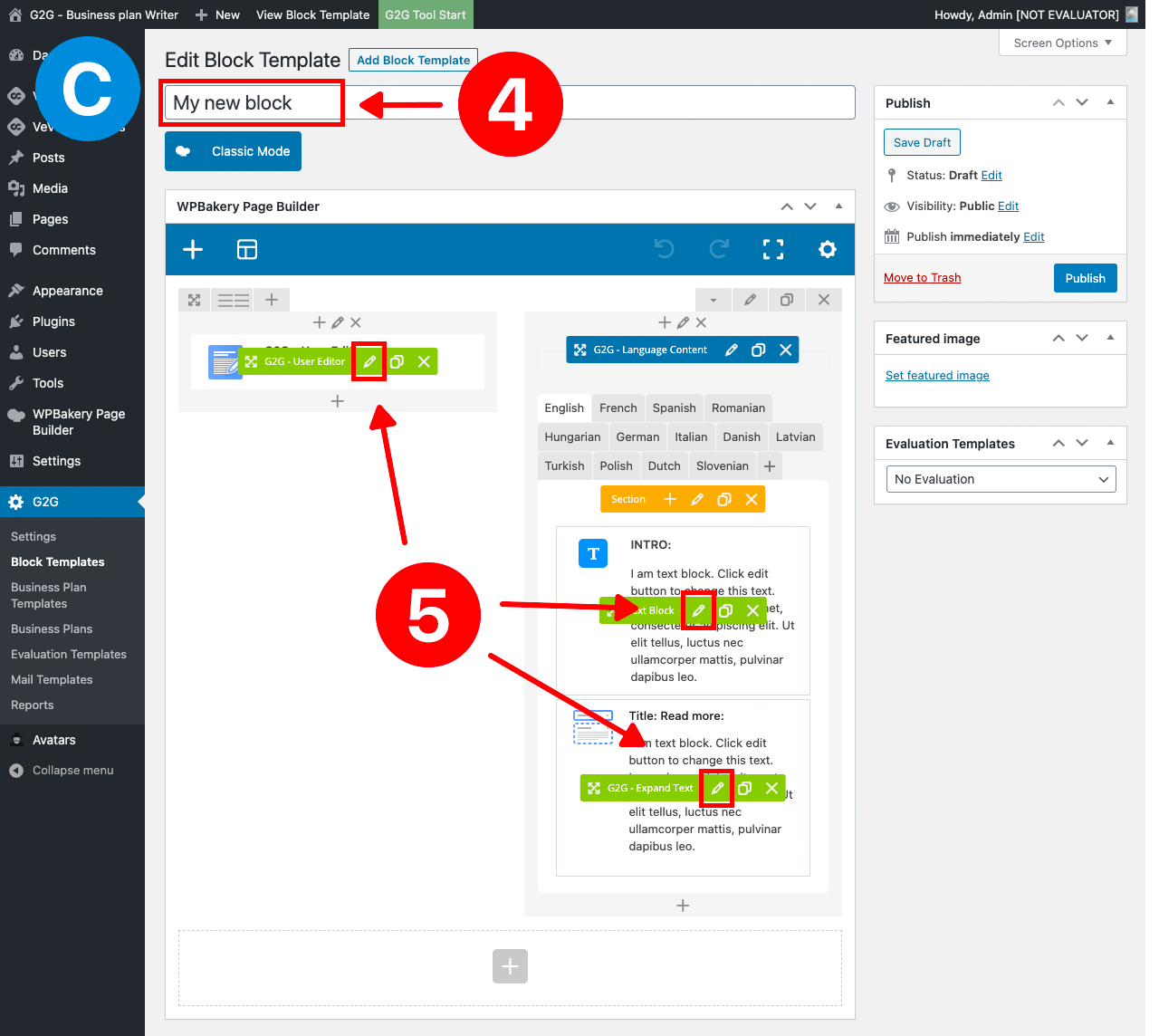
4 – Add a title to your block.
5 – Edit the text for all these elements by clicking on the Pencil Icon. The icons will be visible when you are with the mouse over the elements.
After you press one of these pencil icons you will open a dialog where you can write a title and the content.
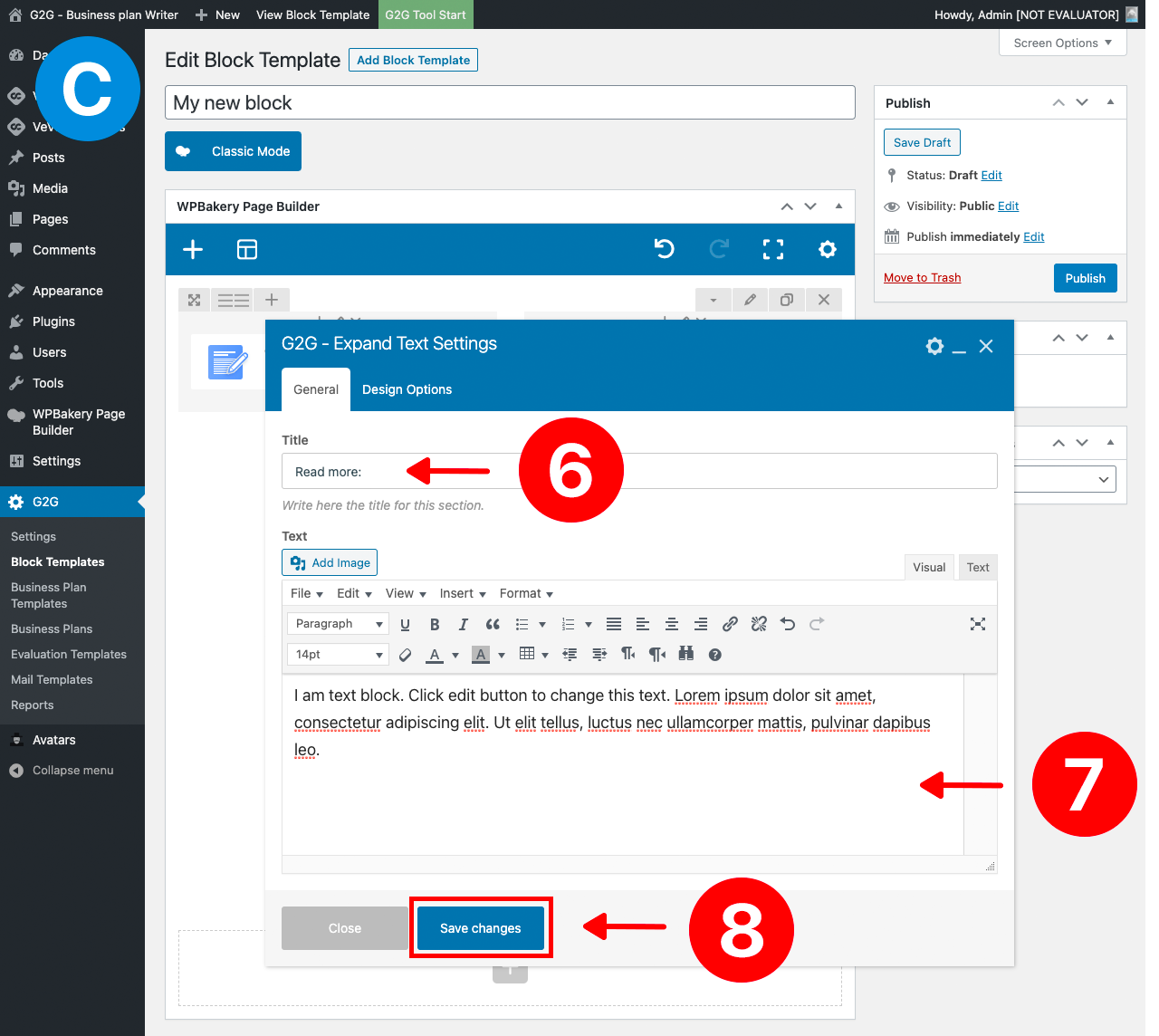
6* – Set a title if it’s missing or if you want to change it. If you don’t see it it’s also ok. This will not be visible for all the elements.
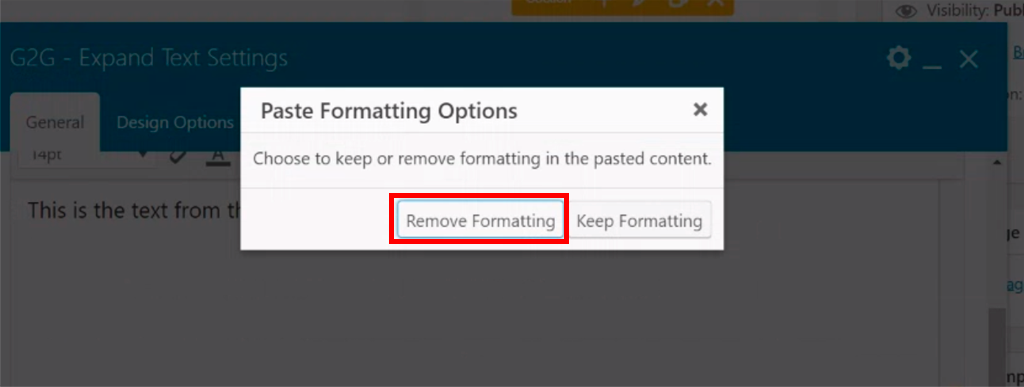
7 – Write your content. If you get this message you should press “Remove Formatting”
8 – Save content and your changes by clicking the blue button “Save changes” (this button will also close the dialog).
NOTE – This is the case when you add another section like “Read even more”. By default there will be 2 sections, INTRO and Read more. If you don’t want to add another section you can skip steps: 9, 10 and 11.
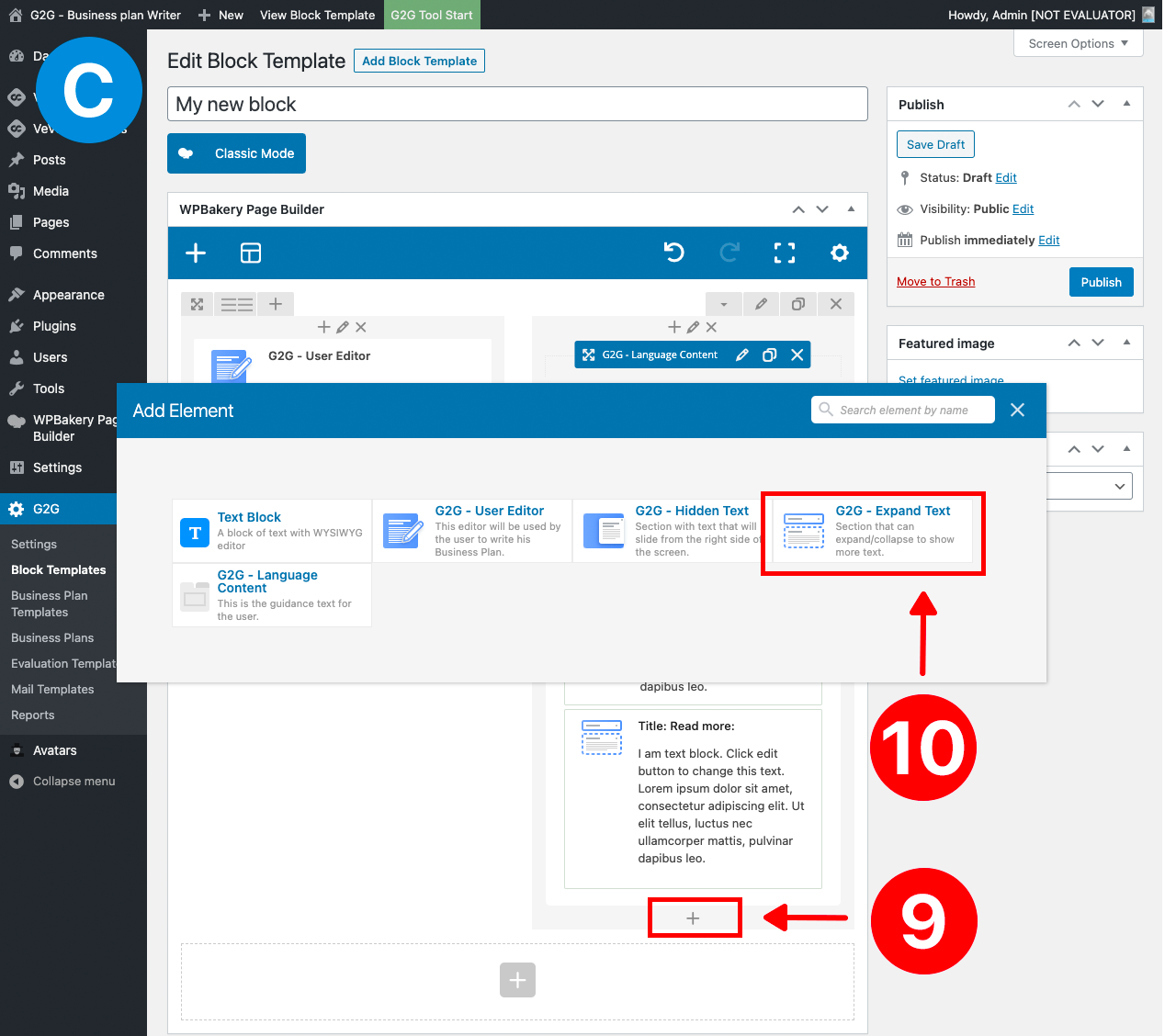
9 – To add another section the press plus icon from the bottom of the right column.
10 – In the dialog that will pop-up press the button “G2G – Expand Text”. Then in the dialog that will open add you title and your content and save changes when you are done.
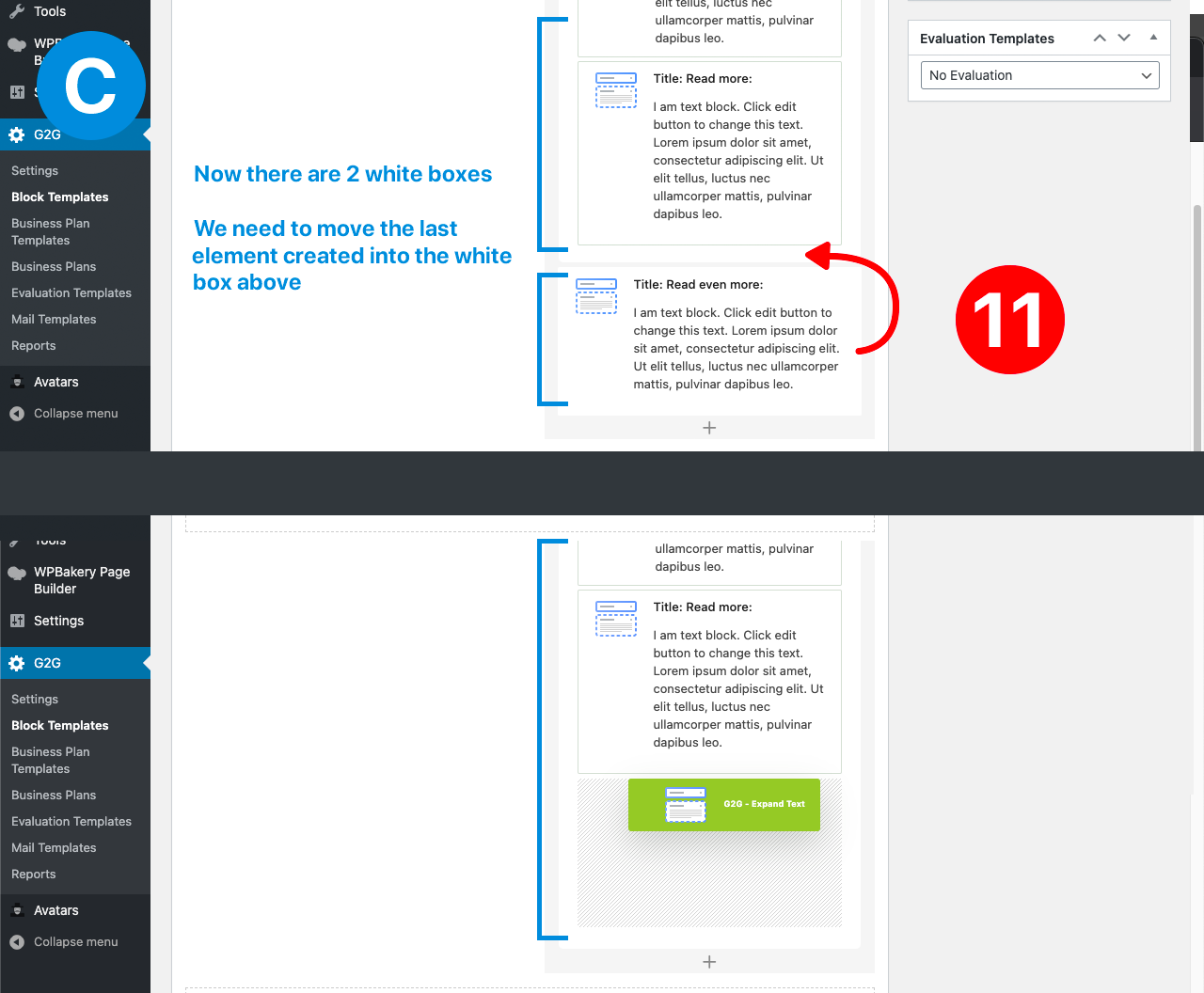
11 – After you added your new section you need to drag and drop it in white box from above, so in the end it’s only 1 white box with all the sections.
12 – From this dropdown you can select a specific Evaluation template for this block. You need to have the evaluation template ready to be able to assign it. Or you can assign it at any time after you created the block, but you should not forget to assign one. If evaluation template is missing the evaluator will not be able to evaluate this block. Learn how to create an evaluation template.
13 – One of the most important step after you are done with all the editing is to publish this block. Don’t forget to press the blue button “Publish“. If you also want to make other changes you will need all the time to use this button to Update changes.
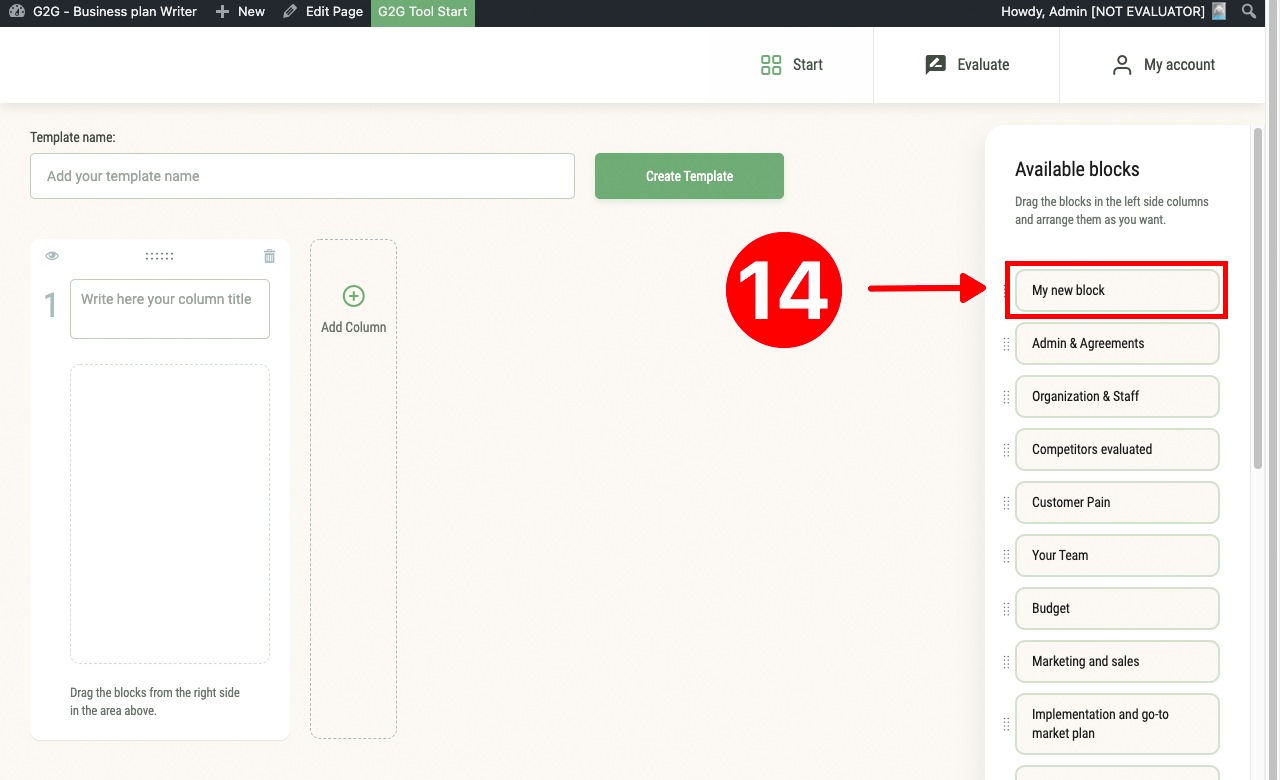
14 – Your block should be now visible in the available blocks and can be used to create a new business plan template.